How to Turn a Word Document into a Reusable Template
A practical guide to how to create a word template, with clear template structure, variable fields, testing, and maintainable Word document automation workflows.
How to Turn a Word Document into a Reusable Template
How to create a word template is most useful when it removes repetitive editing without hiding how the document works. This guide explains the practical workflow, the controls that keep templates maintainable, and the points that still require human review.
For teams working in Word, the core model is straightforward: keep approved wording and layout in a reusable template, represent changing information with clearly named fields, generate from structured inputs, then review the output before distribution.
Why templates save time
Why templates save time is a practical part of how to create a word template. The useful distinction is between content that should remain controlled in the Word template and information that legitimately changes from one generated document to another. Treating those two layers separately makes the workflow easier to review, reuse, and maintain.
The time saving comes from removing repeated mechanical steps: finding an old file, duplicating it, locating every value to replace, repairing formatting, renaming the output, and checking for leftovers. Measure the complete preparation-and-review cycle rather than generation speed alone.
Identifying variable content
Identifying variable content is a practical part of how to create a word template. The useful distinction is between content that should remain controlled in the Word template and information that legitimately changes from one generated document to another. Treating those two layers separately makes the workflow easier to review, reuse, and maintain.
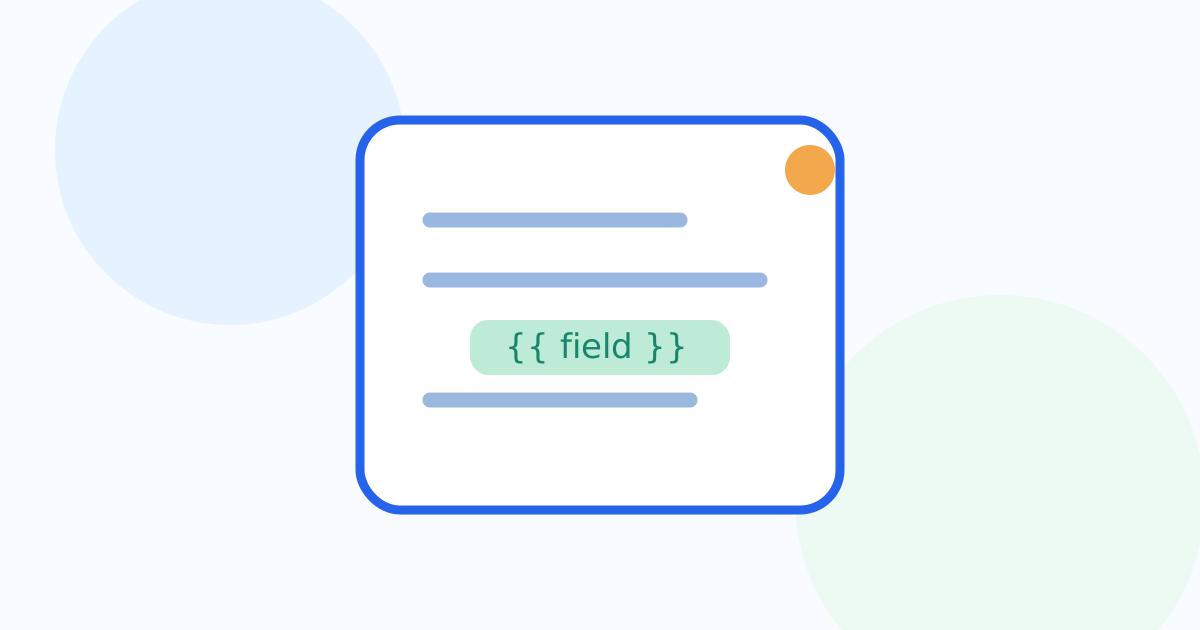
Use explicit names such as {{client_name}}, {{document_date}}, or {{invoice_number}} instead of vague labels. A placeholder should have one meaning throughout the template. Keep surrounding punctuation and formatting outside the variable where possible, and test empty, long, and unusual values before rollout.
Using null placeholder syntax
Using null placeholder syntax is a practical part of how to create a word template. The useful distinction is between content that should remain controlled in the Word template and information that legitimately changes from one generated document to another. Treating those two layers separately makes the workflow easier to review, reuse, and maintain.
Use explicit names such as {{client_name}}, {{document_date}}, or {{invoice_number}} instead of vague labels. A placeholder should have one meaning throughout the template. Keep surrounding punctuation and formatting outside the variable where possible, and test empty, long, and unusual values before rollout.
Step-by-step tutorial
Step-by-step tutorial is a practical part of how to create a word template. The useful distinction is between content that should remain controlled in the Word template and information that legitimately changes from one generated document to another. Treating those two layers separately makes the workflow easier to review, reuse, and maintain.
Start from an approved document, mark the values that change, give each variable a clear name, generate with sample data, and review the result as a recipient would see it. Keep exceptions visible; if a document requires substantial judgment or negotiation, do not force it into a rigid automated path.
Testing your template
Testing your template is a practical part of how to create a word template. The useful distinction is between content that should remain controlled in the Word template and information that legitimately changes from one generated document to another. Treating those two layers separately makes the workflow easier to review, reuse, and maintain.
Test with fictitious data before using live documents. Look for unresolved placeholders, stale copied text, unexpected page breaks, inconsistent number or date formats, and optional sections that behave incorrectly. The best test set includes normal values plus edge cases such as long names and missing optional fields.
Common mistakes to avoid
Common mistakes to avoid is a practical part of how to create a word template. The useful distinction is between content that should remain controlled in the Word template and information that legitimately changes from one generated document to another. Treating those two layers separately makes the workflow easier to review, reuse, and maintain.
Test with fictitious data before using live documents. Look for unresolved placeholders, stale copied text, unexpected page breaks, inconsistent number or date formats, and optional sections that behave incorrectly. The best test set includes normal values plus edge cases such as long names and missing optional fields.
Exporting to Word or PDF
Exporting to Word or PDF is a practical part of how to create a word template. The useful distinction is between content that should remain controlled in the Word template and information that legitimately changes from one generated document to another. Treating those two layers separately makes the workflow easier to review, reuse, and maintain.
Review the generated Word document before export. Check page breaks, tables, headers, fonts, and any values that affect layout. PDF is useful when the recipient needs a stable presentation copy, while the editable master should remain separate so a generated file never becomes the next template by accident.
A reliable way to start
Choose one frequently reused document with stable wording. Work with fictitious data first, document the field names, test edge cases, and make one person responsible for the master template. Expand only after the first workflow is predictable.
Next step
Create Your First Template. E-docu is designed around reusable Word templates and structured document generation. Test the approach on a non-sensitive sample document before moving a live workflow.